
Quick start
A walkthrough of the Pipedash screens. It covers the setup wizard, the Add Provider dialog, the dashboard and the first trigger.
Pipedash opens on the setup wizard after installation. This walkthrough follows each screen in order and uses GitHub Actions as the example provider. Other providers follow the same flow with different credentials, listed on the providers index.
Setup wizard
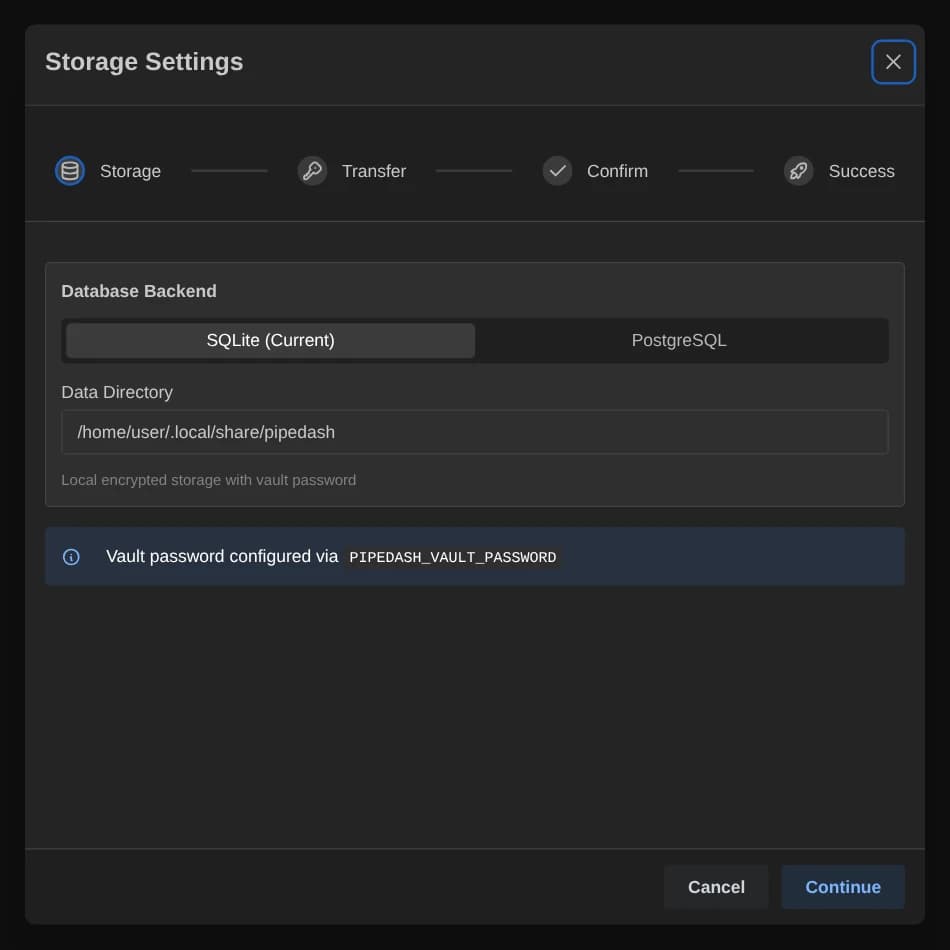
On the first start Pipedash opens the wizard titled "Welcome to Pipedash". The wizard has 4 steps:
| Step | What it shows |
|---|---|
| Storage | The choice between SQLite and PostgreSQL, and the vault password |
| Transfer | The option to move existing data to the new backend or skip. Shown only when a configuration already exists |
| Confirm | The summary of the choices |
| Success | The Get Started button |
On the Storage step, "Database Backend" offers SQLite and PostgreSQL. SQLite shows a Data Directory field. PostgreSQL asks for a "PostgreSQL Connection URL" such as postgresql://user:password@localhost:5432/pipedash.
The vault password encrypts the provider tokens. It needs at least 8 characters and a matching confirmation. When PIPEDASH_VAULT_PASSWORD has a value, the wizard uses it and hides the password fields. The setup wizard, storage backends and token storage pages cover each choice.
Add Provider dialog
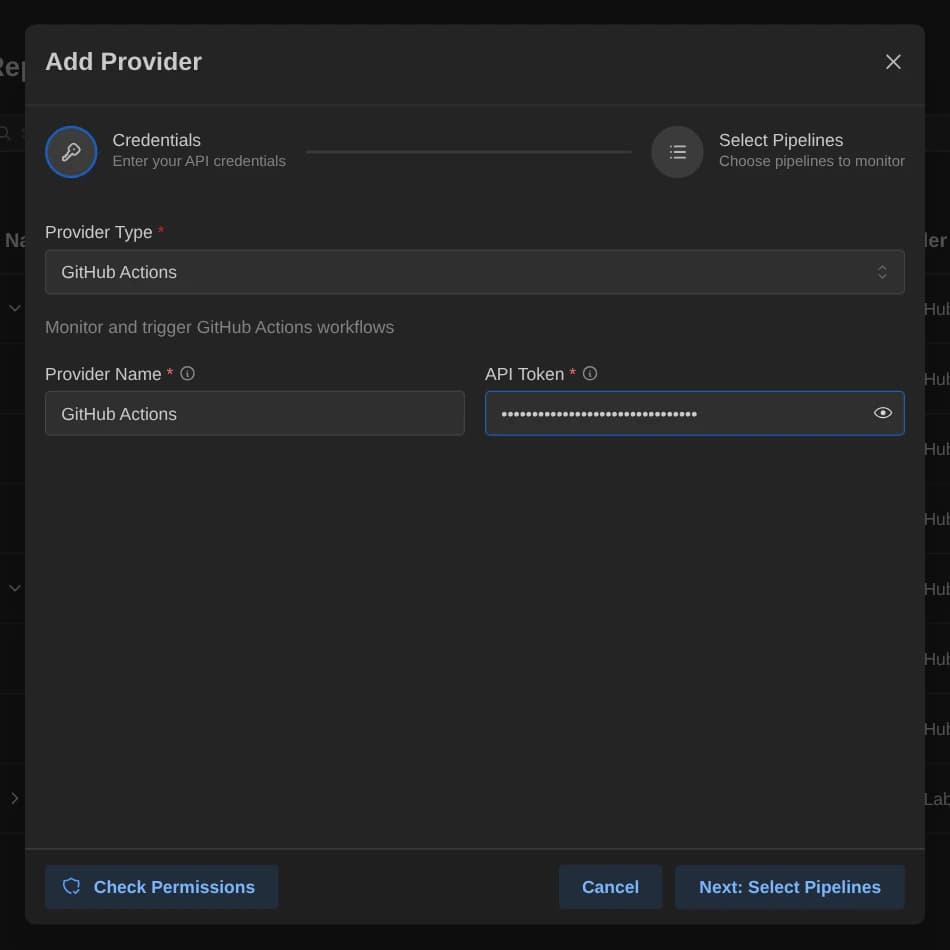
The "Add Provider" button sits in the sidebar. On a narrow screen a floating button opens the same dialog. The dialog has 2 steps, "Credentials" and "Select Pipelines".
GitHub credentials
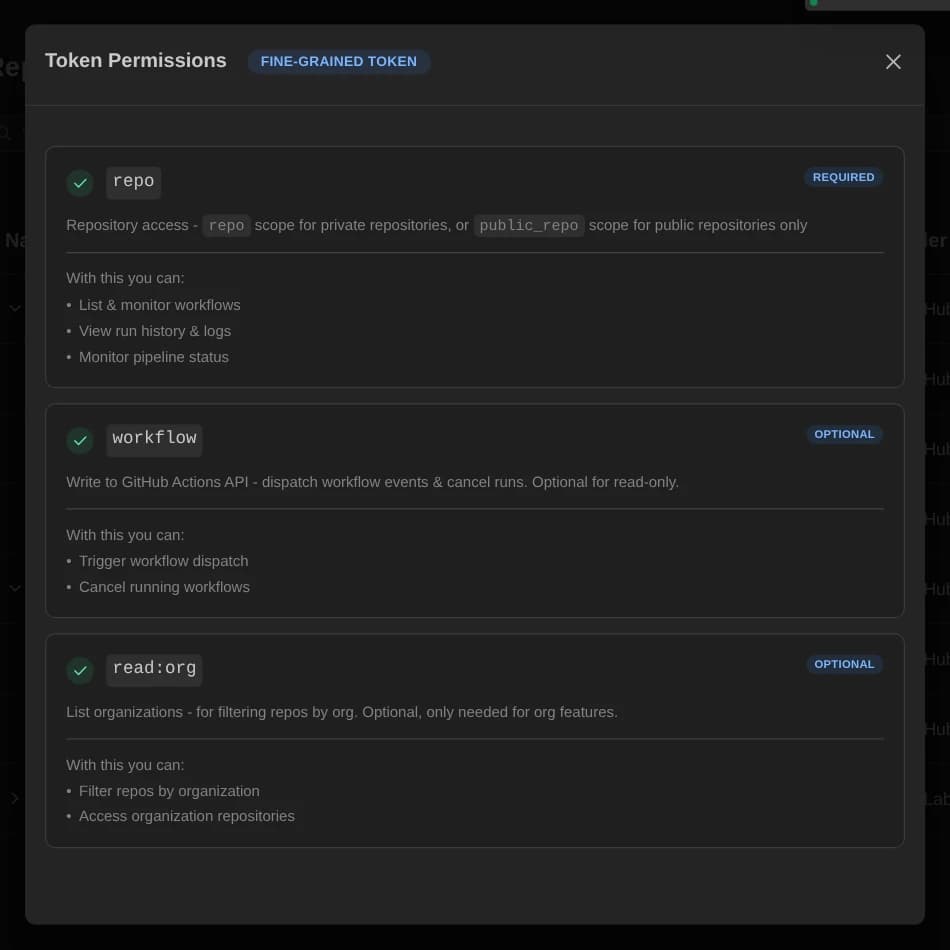
The Credentials step shows the provider types, a "Provider Name" field and an "API Token" field. GitHub Actions takes a personal access token or a fine-grained token with these permissions:
| Permission | Required | Purpose |
|---|---|---|
repo | Yes | Repository access. public_repo is enough to watch public repositories only |
workflow | No | Workflow dispatch events and run cancellation. Read-only use does not need it |
read:org | No | Organization listing for the repository filter |
The "Check Permissions" button reports which of these permissions the token has. It stays disabled until the token field has a value.
Select Pipelines
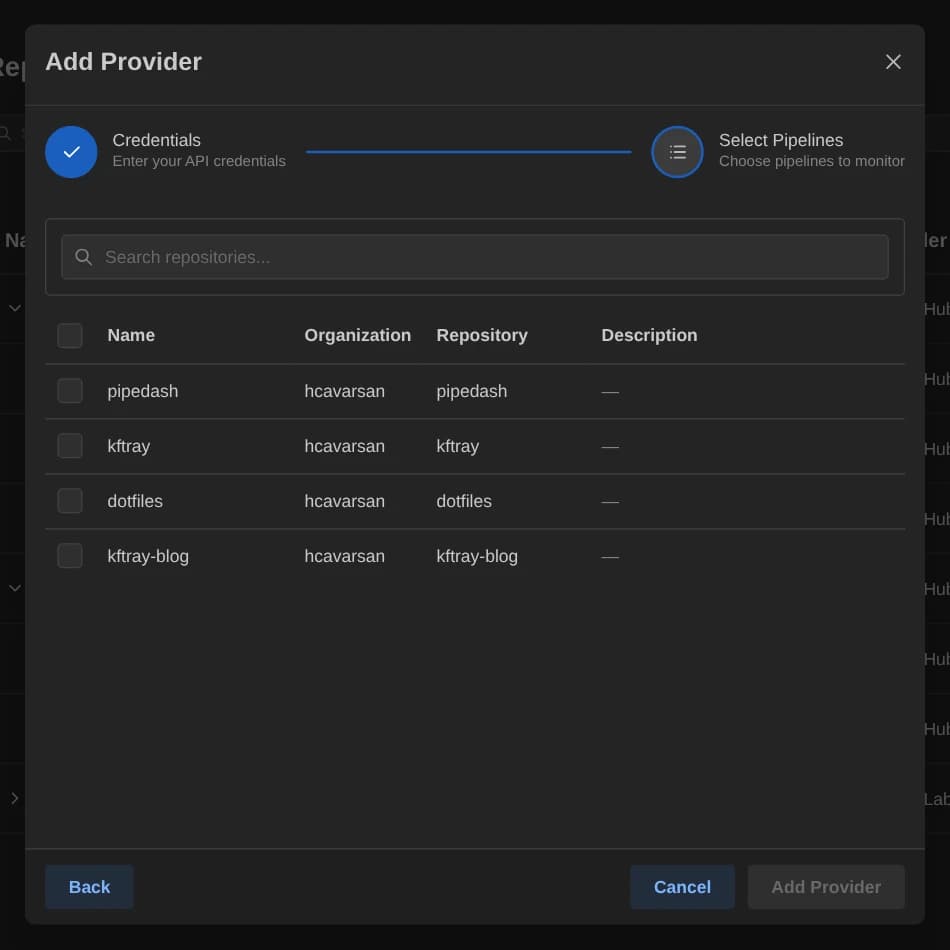
The "Next: Select Pipelines" button opens the second step. The step lists the pipelines Pipedash finds. A "Select organization" menu appears when the account belongs to more than 1 organization. The "Search repositories..." field filters the list, and a checkbox marks each pipeline to watch.
Validation and save
The "Add Provider" button checks the credentials before Pipedash saves anything. A bad token returns the error "Credential validation failed" and the provider is not added. The "Save" button stores the credentials without a pipeline selection.
Dashboard
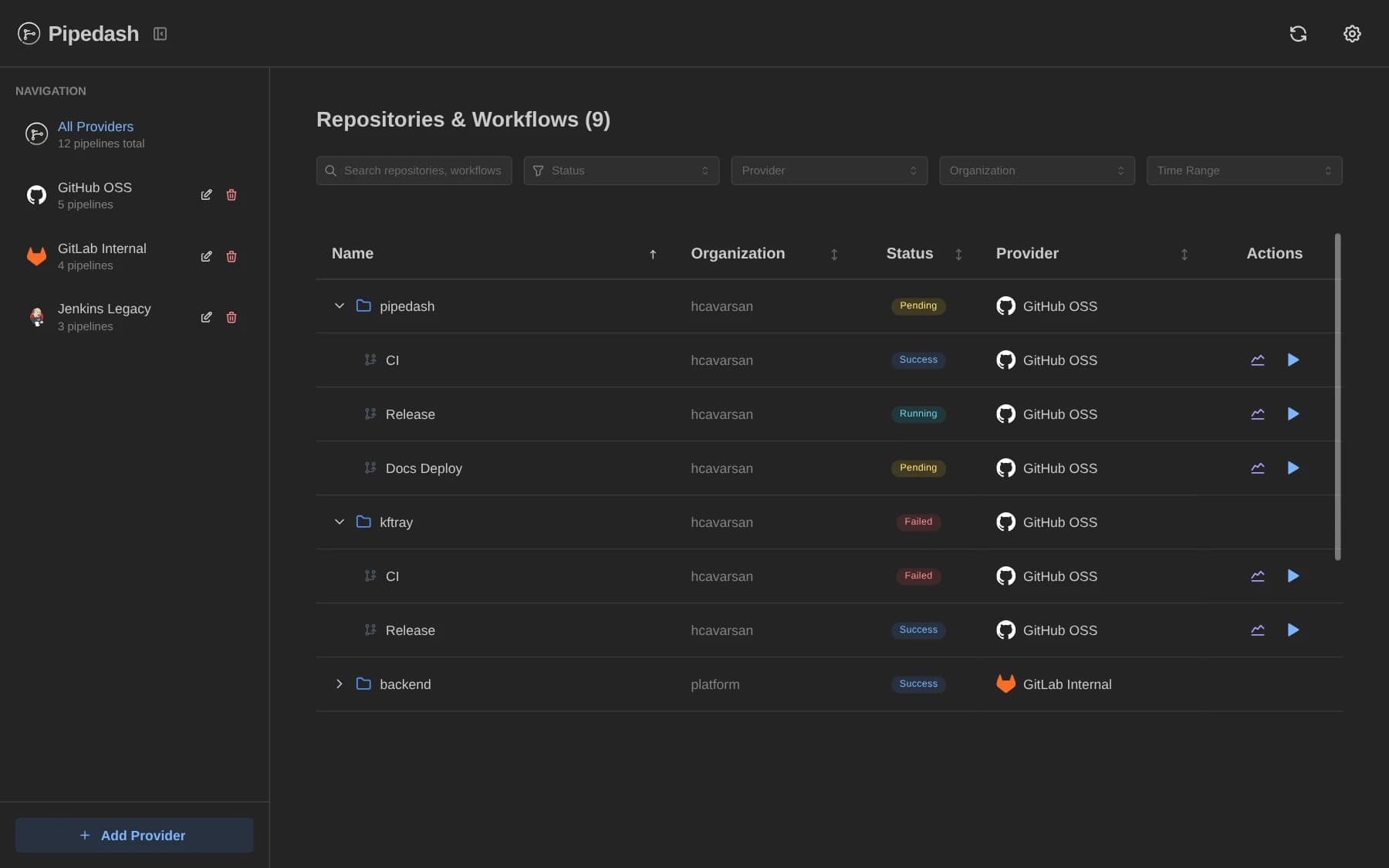
The Pipelines page lists every selected pipeline with its status. It shows the last stored data first and updates in the background. "All Providers" in the sidebar shows the total across providers. Selecting one provider filters the list.
Run history
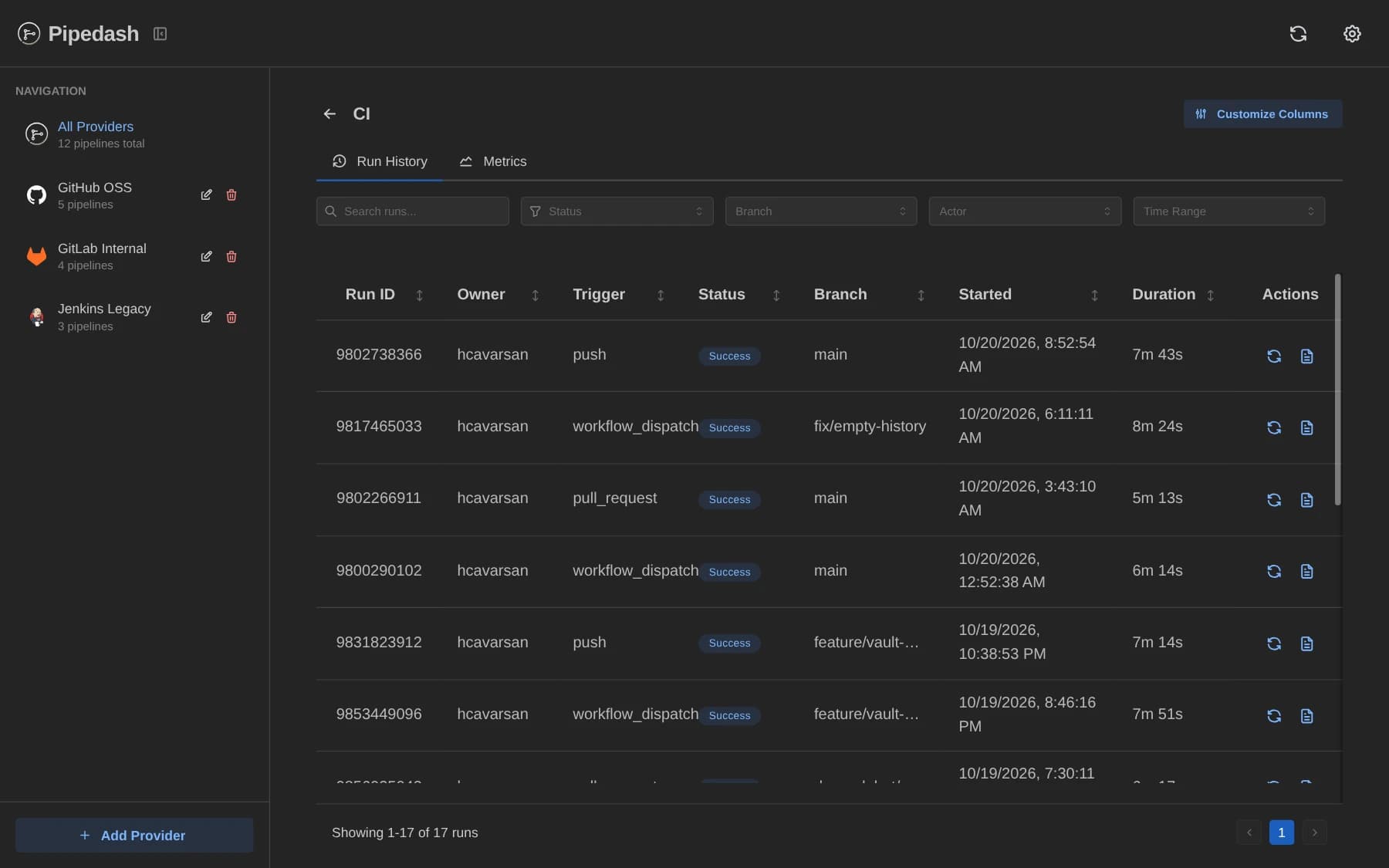
Clicking a workflow row opens its run history. Finished runs show a rerun icon titled "Rerun workflow". Running runs show a stop icon titled "Stop run", and a confirmation dialog offers the "Cancel Run" button. Pipedash cannot cancel a pending run.
Trigger dialog
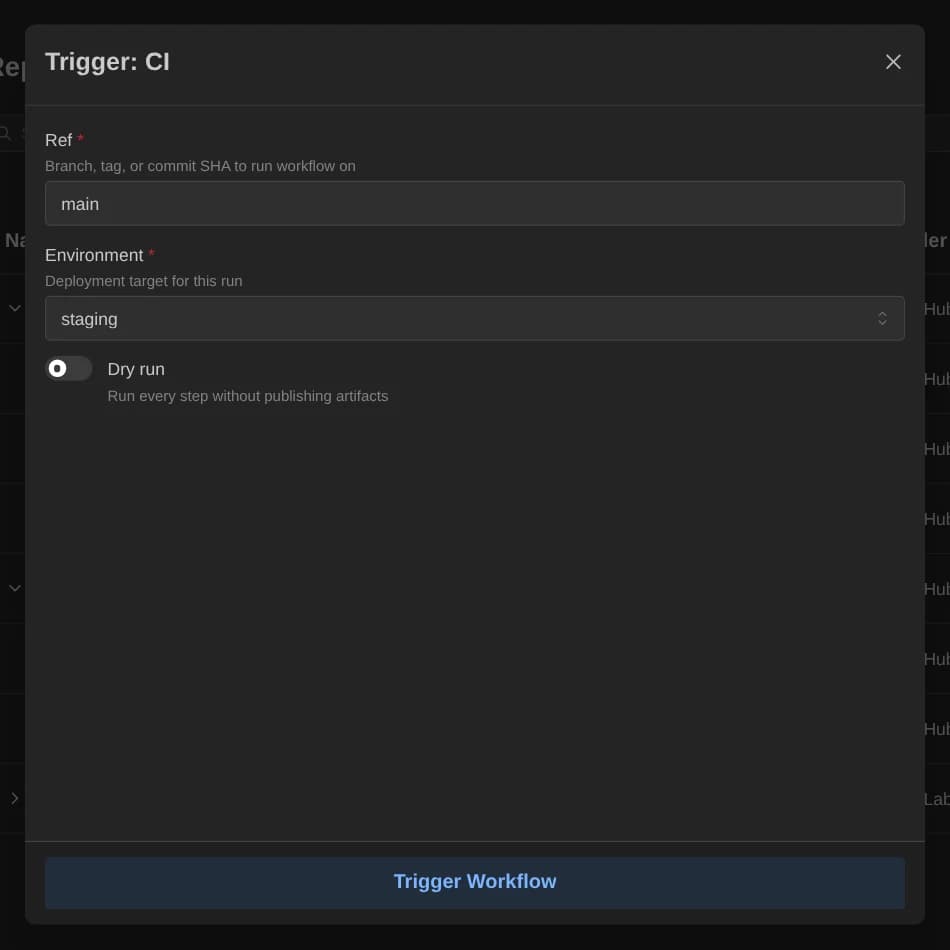
The play icon on a row, titled "Trigger workflow", opens the trigger dialog. The dialog title is "Trigger: " followed by the pipeline name. For GitHub it has a required ref field that defaults to main, plus any inputs the workflow declares. The "Trigger Workflow" button starts the run.
Next step
How it works explains the refresh loop that keeps the dashboard current.