
Dashboard
The Pipelines page groups workflows by repository, filters by status, provider, organization and time, and switches to cards at 768 px.
The Pipelines page at /pipelines lists every repository from the connected providers. Each repository row expands into its workflows. The header shows the repository count under the title "Repositories & Workflows".
Repositories and workflows
A repository row shows its name, organization, the status of its most recently run workflow and the provider icon. Clicking the row expands or collapses its workflows.
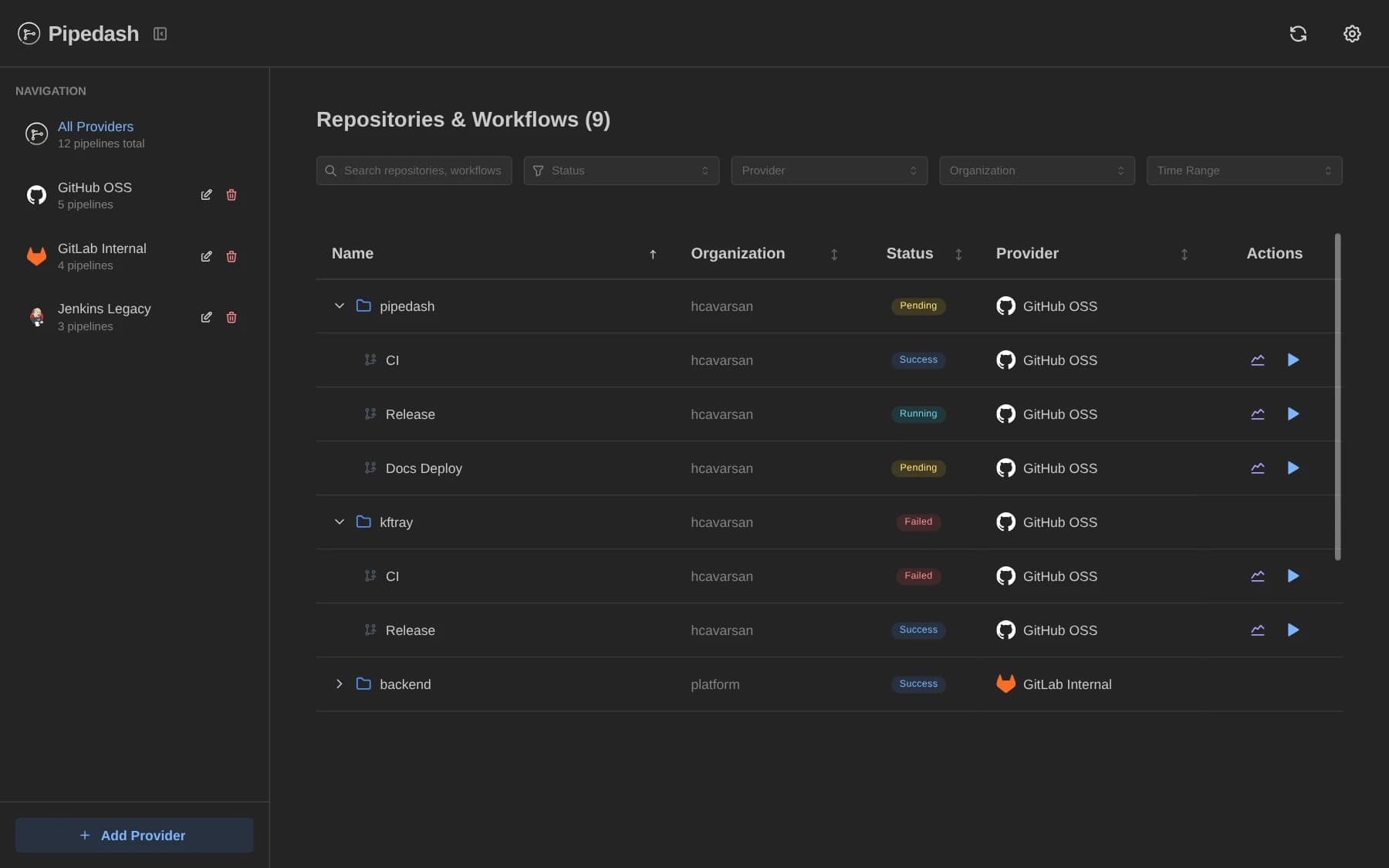
A workflow row shows the workflow name, organization, status, provider and two action icons. The chart icon opens the metrics tab. The play icon opens the trigger form. Clicking the row itself opens the run history.
- Organization: the text before the first
/in the repository name. When there is none, Pipedash shows the provider name. - Selected repositories: a repository chosen when adding a provider appears even when it has no workflows yet.
- Fetch errors: when a provider failed its last fetch, its repository rows show a warning icon. Clicking the row opens a dialog with the provider name and the error instead of expanding.
- First fetch: while a provider has no completed fetch, its rows show a spinner in the Actions column.
Search and filters
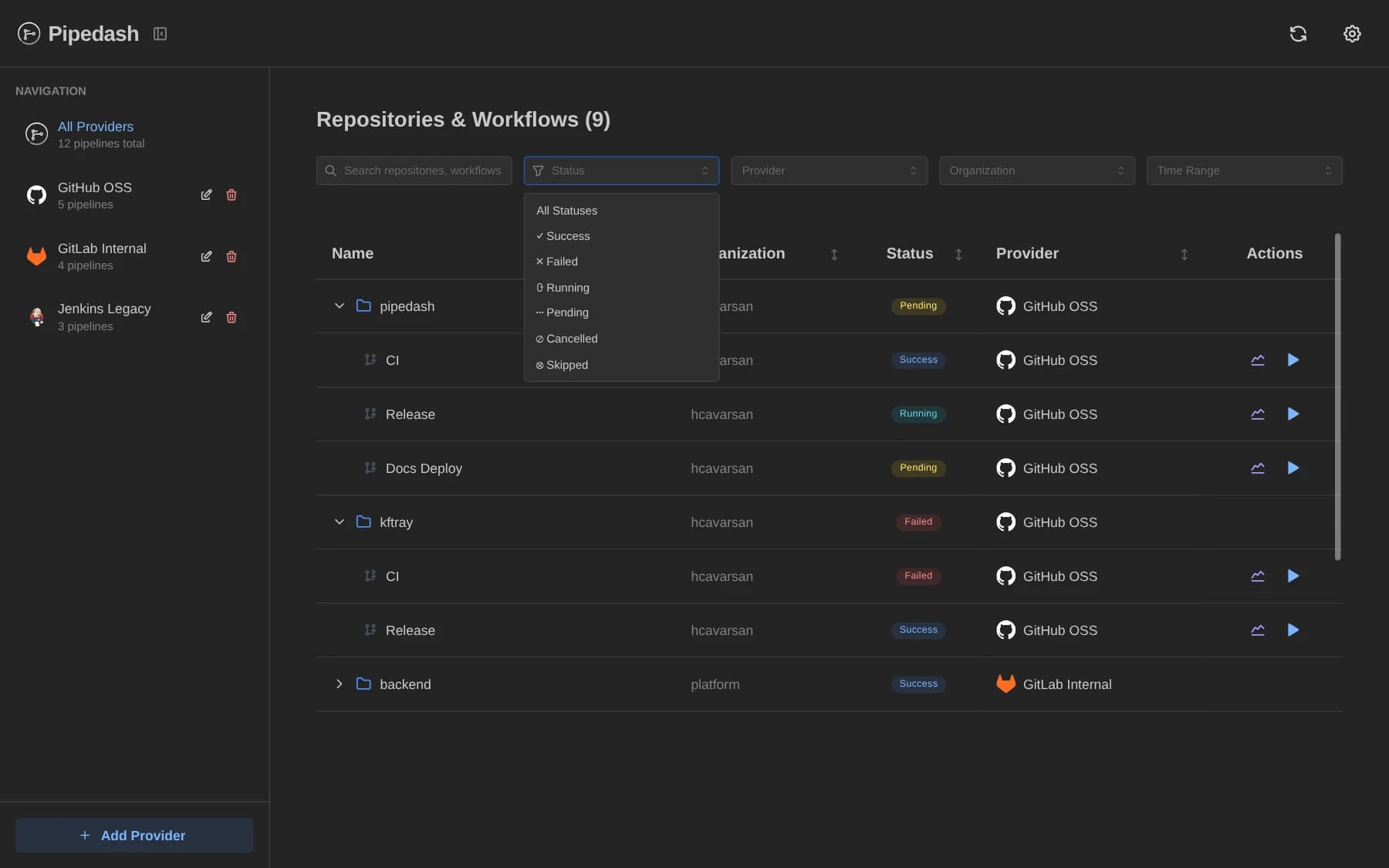
The filter bar has five controls. Each control writes to the URL query string, so a filtered view has its own bookmarkable URL. The Clear Filters button resets all of them.
| Filter | Query key | Values |
|---|---|---|
| Search | search | Free text. Repository rows match name or organization. Workflow rows match workflow name or branch. |
| Status | status | success, failed, running, pending, cancelled, skipped |
| Provider | provider | Provider names currently in the table |
| Organization | organization | Organizations currently in the table |
| Time range | dateRange | All Time, Today, Last 24 Hours, Last 7 Days, Last 30 Days, Last 60 Days, Last 90 Days |
A few rules decide what stays visible:
- A workflow match keeps its parent repository, and a repository match keeps all its workflows.
- A workflow name or branch search only matches inside expanded repositories.
- The status filter keeps a repository when any of its workflows has that status.
- The time range compares the last update of a repository, or the last run of a workflow. Rows without a date are hidden.
- Last 60 Days does not filter correctly on this page. Last 30 Days and Last 90 Days filter correctly.
Sorting
The Name, Organization, Status and Provider headers show sort arrows, but the dashboard does not sort its rows yet. Rows keep the order in which repositories first appear in the pipeline list.
The run history table does sort its rows. The Run history page covers it.
Status badges
| Status | Label | Color |
|---|---|---|
success | Success | blue |
failed | Failed | red |
running | Running | cyan |
pending | Pending | yellow |
cancelled | Cancelled | gray |
skipped | Skipped | gray |
Hovering a status in the table shows the last activity time, or "Never".
Sidebar
The sidebar starts with "All Providers" and the total pipeline count. Below it, each provider shows its icon, name and pipeline count. A red warning icon with the fetch error in a tooltip appears when the last fetch failed.
Selecting a provider filters the table and navigates to /pipelines?provider=<id>. Each entry also has edit and remove buttons, and removal asks for confirmation. The Add Provider button sits at the bottom of the sidebar on desktop and is hidden on mobile.
Column preferences
Only the run history table supports reordering and hiding columns, and Pipedash saves the choice per provider. The Run history page covers it.
Mobile layout
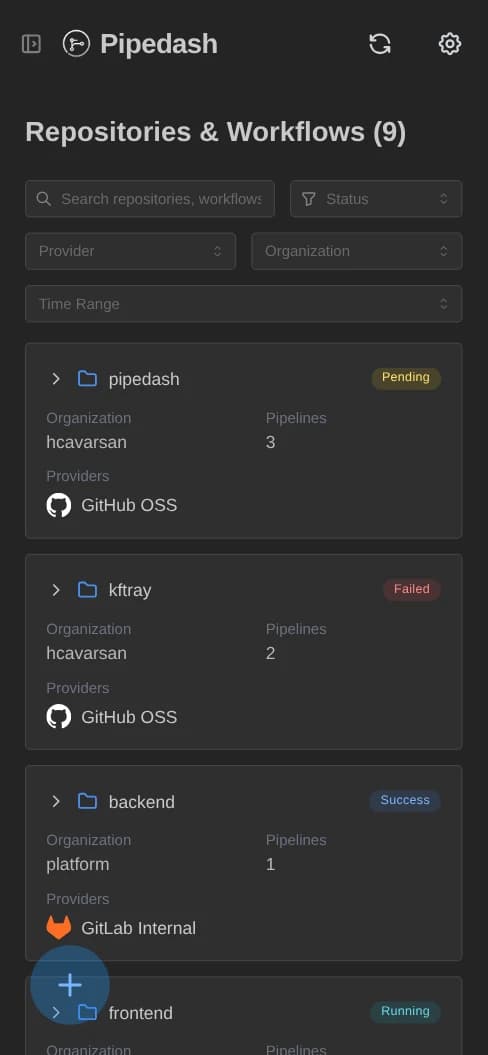
At 768 px and below the table becomes cards. A repository card shows the name, latest status, organization, pipeline count and providers. A workflow card adds the branch, the metrics icon and the trigger icon. Tapping a repository card expands it, and tapping a workflow card opens its run history.